

Quick start
This page takes you from a freshly activated plugin to a feed you can submit to podcast directories.
A show is the podcast as a whole; an episode is an individual release within it.
1. Describe your show
Section titled “1. Describe your show”Go to A Ripple Song → Podcast Settings and fill in the show details: cover, title, description, language, author, owner and Apple Podcasts category.
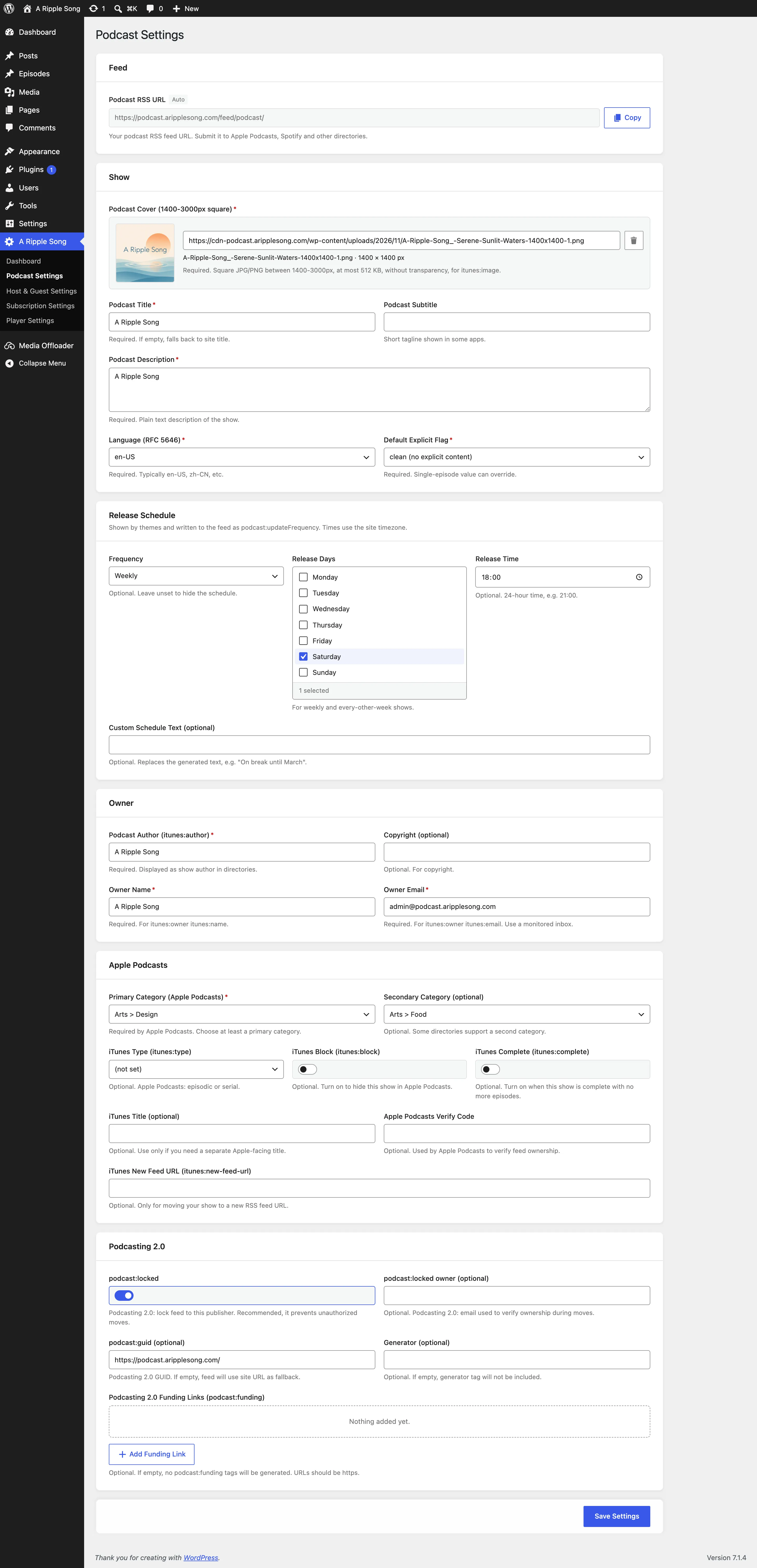
The cover is checked against Apple’s artwork rules: a square JPG or PNG, 1400 to 3000 pixels, at most 512 KB, with no transparency.
2. Optional settings
Section titled “2. Optional settings”Under A Ripple Song you will also find:
- Host & Guest Settings: the show’s hosts and guests (selectable when adding or editing an episode).
- Subscription Settings: links to your show on podcast platforms.
- Player Settings: player skins, the progress bar, the audio spectrum and more.
All of them have sensible defaults, so you can come back to them later.
3. Publish an episode
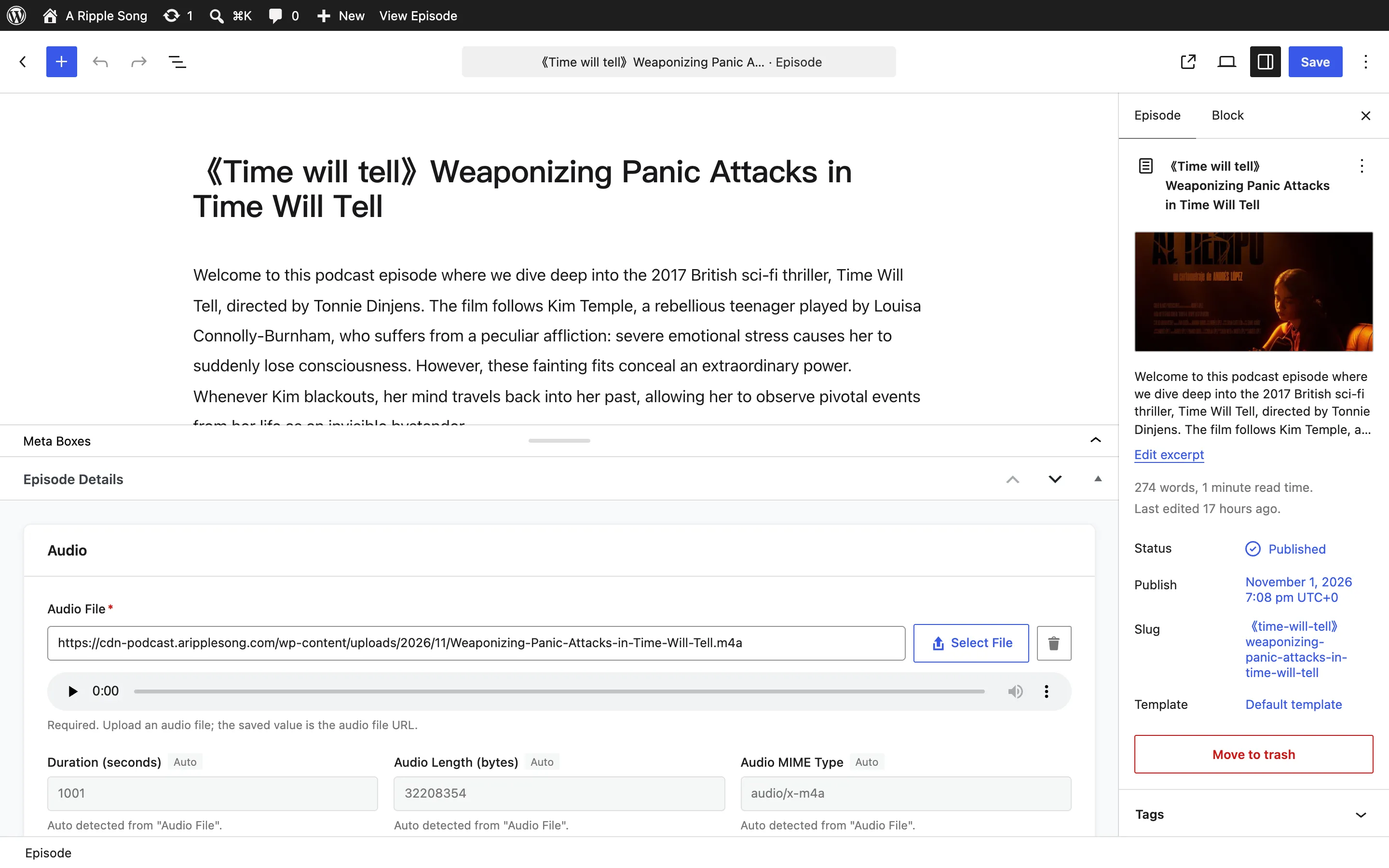
Section titled “3. Publish an episode”Go to Episodes → Add New Episode, write the show notes, and choose an audio file under Episode Details. Duration, file size and MIME type are filled in when you save.
4. Submit your feed
Section titled “4. Submit your feed”Copy the feed URL from the top of Podcast Settings. By default it is:
https://your-site.example/feed/podcast/If permalinks are disabled, use https://your-site.example/?feed=podcast.
Before submitting your RSS feed, check that it meets the requirements using the RSS validator. Then submit this URL to Apple Podcasts, Spotify and the other directories you want to be listed in.
5. Check the dashboard
Section titled “5. Check the dashboard”A Ripple Song → Dashboard shows play statistics and health checks that list the show settings and episodes missing what podcast directories need, such as a cover, a category, audio or a duration.